Showing posts with label VISTA Tricks. Show all posts

Monday, December 13, 2010

Move taskbars

If you want to change the position of Taskbar then go for it by simply following these steps...

Right click on taskbar (if it is locked than click on lock taskbar to unlock it) drag taskbar to its new location then again locked it by right click on it.
Continue reading →

Change Web Page Font Size on the Fly

If your mouse contains a wheel for scrolling, you can change font size on the fly when viewing a Web page. To do so:

Press and hold Ctrl. Scroll down (towards yourself) to enlarge the font size. Scroll up (away from yourself) to reduce the font size.

You might find it useful to reduce font size when printing a Web page, so that you can fit more content on the page.
Continue reading →

Double click in single click

If u want to get rid of double clicking to open an item then now you can open an item by just clicking once. For this follow these steps..

start>>my computer>>tools>>folder options>> click single click to open an item then click ok.
Continue reading →

Auto Login

Follow these steps for auto login:

· Go to Start/Run, and type 'control userpasswords2'.

· From Users Tab, Uncheck "Users must enter ...."

· A dialog will allow setting a user and password to be used automatically.
Continue reading →

Create Shortcut to shutdown computer - Cool Computer Trick

Leaving your computer in a hurry want to shutdown it but reallly it takes a lot of time first go to start menu then click on shutdown then click ok on shutdown dialog box. But now you can shutdown your system in 1 click. Create shortcut os shutdown on your desktop, To create shortcut follow these steps:


1) Go to desktop, Right click on it.
2) Select New >> Shortcut.
3) In new shortcut wizard window type "shutdown -s -t 01" in location.


4) Click Next.
5) Give any name to shortcut, I gave shutdown.
6) Click OK.

Its done.
now you can shutdown your computer by clicking on that shortcut.
Continue reading →

Create Shortcut to restart computer - Cool Computer Trick

Create shortcut to restart computer on your desktop, To create shortcut follow these steps:
1) Go to desktop, Right click on it.
2) Select New >> Shortcut.
3) In new shortcut wizard window type "shutdown -r -t 01" in location.

4) Click Next.
5) Give any name to shortcut, I gave shutdown.
6) Click OK.
Its done.
now you can use this shortcut to restart your computer.
Continue reading →

Sunday, December 12, 2010

Scan and Replace window's corrupted System Files

If your computer running slowly or not working properly then there may be some problem in its System files. System files are group of program files that work together to run your computer. These files can be changed or corrupted with time, it may corrupts due to installation of softwares, some internal errors or due to viruses, which makes computer slower.

Scan your system files to check if they are working fine or having some errors. In case of damaged system files you can repair or replace them. It can be done by System file checker.


System File Checker is a utility in Microsoft Windows that allows users to scan for and restore corruptions in Windows system files. This utility is available on Windows 98, Windows 2000, Windows XP, and Windows Vista.


Follow these steps to use System file Checker:

1). Go to Run.
2). Type SFC /SCANNOW and click on ok button.
3). It will start scanning proccess and this process takes longer time, it can be more than 30 mins.
4). In case window having some problems, It will display some steps to follow. just follow those steps.
Continue reading →

Sticky Menus

Normally when you move the mouse over the Start Menu or over some Programs, it will automatically cascade and show the submenus. But if you want menus to open submenus only when you actually click on them, then those menus are known as sticky menus so here are steps to make sticky menus, you need to make some changes in regestiry just follow these steps:

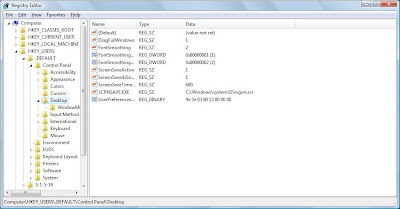
1. Go to run and type Regedit.
2. In registry editor window, browse to HKEY_CURRENT_USER \ Deafault \ Control Panel \ Desktop.
3. Check if there is any string named MenuShowDelay, If it not there, create a string called MenuShowDelay.


4. Give it a value of 65534.
Its done.
Continue reading →

Notepad, System tricks, Tweaks, VISTA tricks, XP tricks

Here is trick to open cdrom in 1 click. For this you have to make a file which when clicked open cdrom. So to make that file follow given steps:


1). Open notepad.

2). Copy given code as it is into it

code:

Set oWMP = CreateObject("WMPlayer.OCX.7")
Set colCDROMs = oWMP.cdromCollection
if colCDROMs.Count >= 1 then
for i=0 to colCDROMs.Count - 1
strDrive= oWMP.cdromCollection.item(i).driveSpecifier
colCDROMs.Item(i).Eject
strQuestion = "Close DRIVE " & strDrive & "?"
answer= msgbox (strQuestion, vbYESNO)
if answer= vbYES then colCDROMs.Item(i).eject:
next
end if
wscript.quit


3). Save it anywhere with the name cdrom.vbs.
Its done.


The above file when clicked will open your cd rom and ask question to close it and will close in case of pcs when you say yes.
Continue reading →

Control number of cookies

How do you control the number of cookies you allow on your system? If you want to increase your computer security then Block cookies from sites that use personal information. just follow these steps:

Click Start > Control Panel > Network And Internet Connections > Internet Options.
Click the Privacy tab, then use the slider bar to modify your cookie settings.
For instance, you can block cookies from sites that use personal identification without your consent. but if you want to further increase your security, then go for other privacy settings in this dialog. here you have options to Accept All Cookies and to Block All Cookies, with low, medium, medium-high, and high settings in between.
But before doing anything keep in mind that rejecting cookies may limit your actions on some Web sites and accepying all cookies may be harmful for you and for your system
Continue reading →

Increase the Browsing and Downloading speed in Windows Vista

In window vista the web browsing and downloading speed is very slow as compare to previous versions of windows. You can open the same sites in windows XP and server 2003 with much better speed. Here are steps to increase internet speed in window vista using browser internet explorer. Just follow these steps:


1). Open Internet Explorer.

2). Go to tools and then internet options.

3). Now in internet options window go to Advance tab.

4). Scroll down in settings to find use SSL 2.0 to turn on SSL (Secure Sockets Layer) and tick on it and remove tick from Use TLS 1.0 to turn off TLS(Transport Layer Security.


5). Click OK.
Its done.

Now web browsing speed should be much better than before.
Continue reading →

Add Run command to start menu in Vista

Window vista does not have run command in start menu. Run command is great feature of window xp. So those who upgrade from window xp to window vista may miss run command.
Here are steps to include run command in window vista's Start menu.

Follow given steps to add run command to start menu:
1). Right click on taskbar and go to properties.
2). Click on start menu tab.
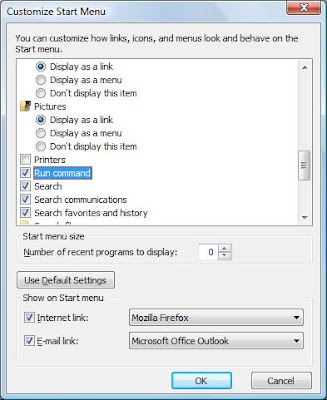
3). In start menu properties, click on customize button.

4). Scroll down to run command and click on check box of run command.

5). Click ok.
Its done.
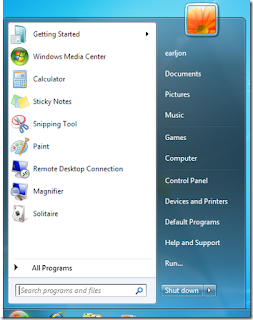
Check start menu, It should include run command as shown in figure.
Continue reading →

Saturday, December 11, 2010

Keep Your Favorite Programs Near the Top of the Start Menu

Do you have a favorite program that you frequently use? Elevate its priority on the Start menu by putting it at the top of the list. This ensures that the program will remain on the Start menu and cannot be bumped by other programs, even if you use the others more frequently.

Right-click the link to your favorite program on the Start menu and select Pin to Start Menu. Your program will be moved permanently to the top part of the list, just below your browser and e-mail programs.
Continue reading →

Add picture to Folder

You can add a picture on a folder. Just follow these steps..

1) Right click on folder you want to add picture and click properties.
2) In dialog box click customize tab then click choose pictures.
3) Choose picture which you want on folder.
4) click ok
Continue reading →


Popular Posts

Copyright 2010 Craze Club. All rights reserved.
A Blog By Qemren l Online Movies, Crazy Videos and Pictures,Pakistani Stage Dramas, Knowledge, World News,facebook wallpapers, Men Women Urban Fashion,Desi Fashion, Celebrities, Online Games, Wallpapers, Articles, Love, Technology, Sports, Interesting, Art,Information, History etc..

Craze Club